The Shiba Gallery Plugin allows you to display a variety of javascript galleries within your WordPress blog. All you need to do is specify the type of gallery you want in your regular WordPress gallery shortcode.
The Shiba Gallery is very flexible and can render post, page, and gallery objects, in addition to image attachments. This article describes some of the cool things that you can achieve with the Shiba Gallery.

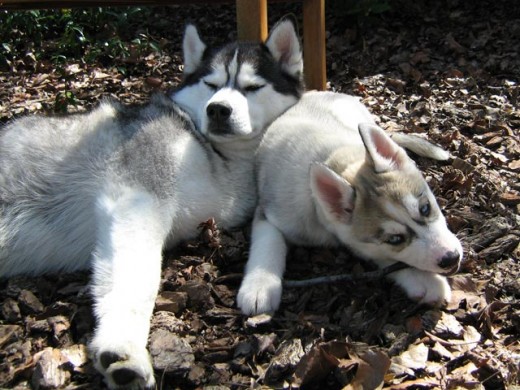
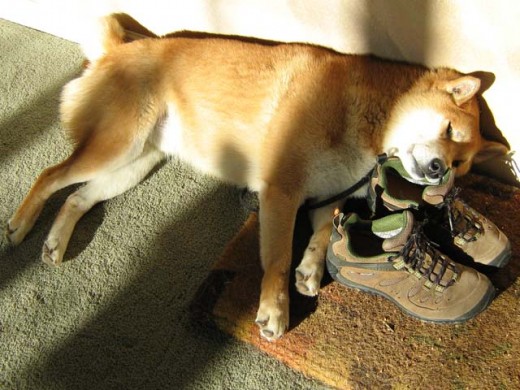
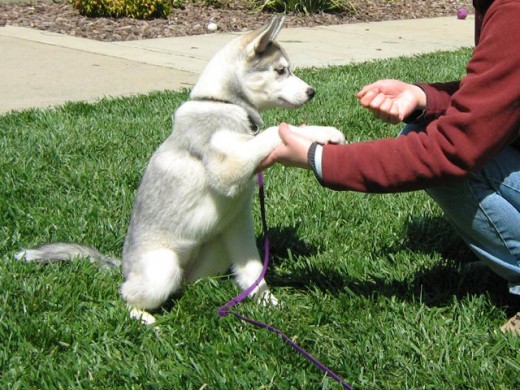

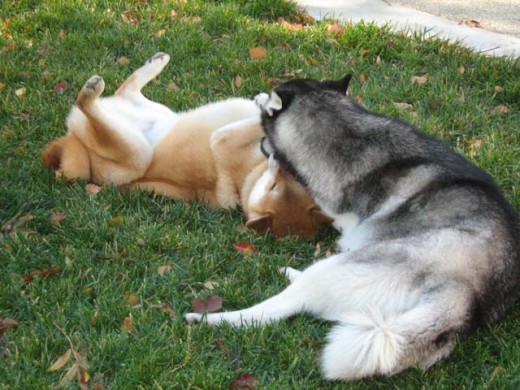



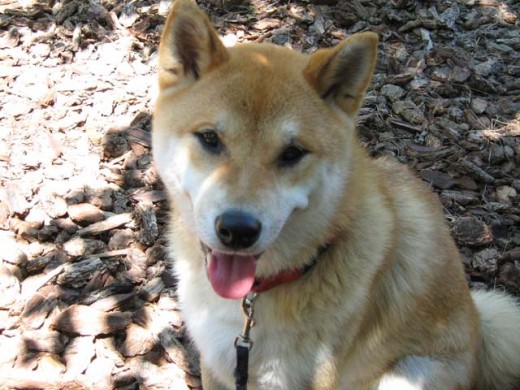
Shiba and Siberian rendered using TinySlideshow2.
[gallery id="10" type="tiny2" size="large" frame="white" tsize="none" autoplay="1"]
December 25th, 2015 – Shiba Gallery 4.4.5
- Fixed lightbox to work with duplicate thumbnail images.
- Tested for WP 4.4.
This is a very big update, so definitely test first before deploying.
Javascript Galleries Supported
Currently, the Shiba WordPress Gallery Plugin includes the following gorgeous Javascript libraries –
TinySlideshow by Michael Leigeber.





Example TinySlideshow Gallery
Tiny Slideshow is a very slick looking inline gallery that allows users to scroll through the images, or enjoy them in an automatic slideshow mode.
[gallery id=10 type="tiny" caption="title" size="(600, 400)" crop="1" responsive="aspect"]
NoobSlide from EfectoRelativo.net







Example NoobSlide Galleria Gallery
There is one word to describe the NoobSlide Gallery – Awesome!
If I had two words, I would say Simply Awesome!
With NoobSlide you can easily combine together various gallery type components to create a range of compelling gallery styles.
For example, to the right I have created a NoobSlide version of Galleria. At the bottom I have created a NoobSlide version of SlideViewer.
[gallery id=10 type="noobslide_galleria"]
[gallery id=10 type="noobslide_slideviewer" responsive="aspect"]


Example NoobSlide SlideViewer Gallery
Lightbox by Lokesh Dhakar.
Original lightbox gallery. It uses jquery and sizes properly based on browser window.
[gallery id=8162 type=lightbox size="thumbnail" caption="none"]




Example Lightbox Gallery.
Slimbox by Christophe Beyls.
Slimbox is an efficient version of Lightbox that is solely based on jQuery. Slimbox will now be used in place of Lytebox.
[gallery id=8162 type=slimbox size="thumbnail" caption="none"]
Example Slimbox Gallery.
Lytebox by Markus F. Hay.
Lytebox is not as efficient as Slimbox but it will resize images that are larger than the browser screen.
[gallery id=8162 type=lytebox size="(120,120)" caption="none"]




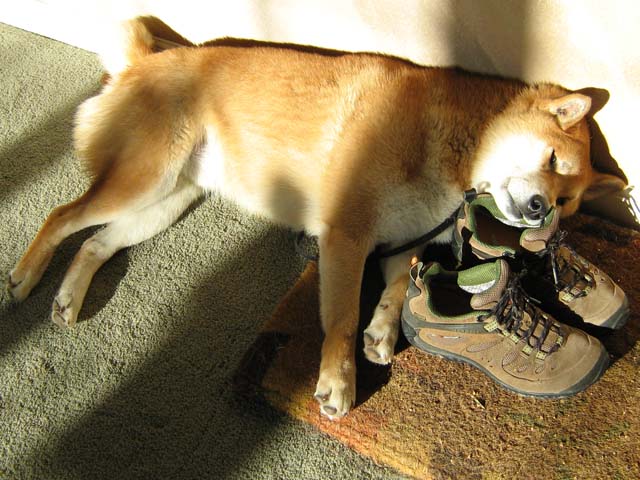
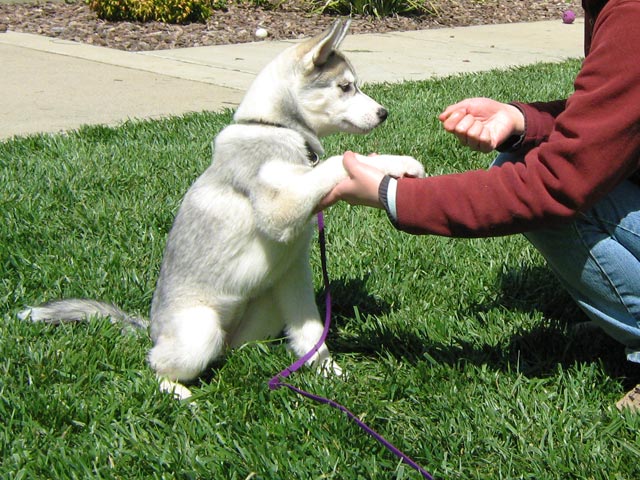



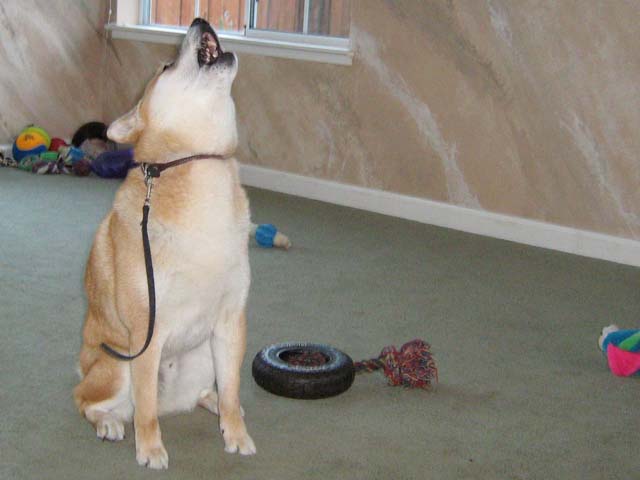

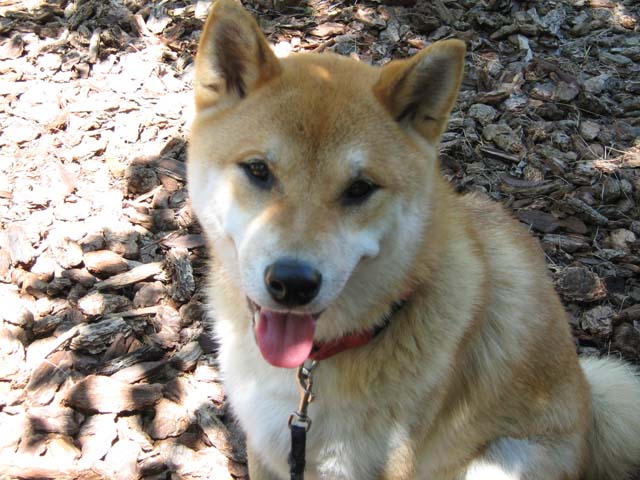
Example Lytebox Gallery.
Popeye 2.0 Gallery by Christoph Schüßler.
Example Popeye Gallery.
Popeye is an awesome inline gallery that allows you to expand images in-place. It also has some very well styled frames which we have also included in the Shiba Gallery Plugin.
[gallery id=10 type=popeye]
Galleria by Aino.
Example Galleria View.
Galleria is a very professional looking image gallery. It is also fast, simple, and easy to use. The classic version shown here is very similar to Tiny Slideshow in terms of functionality. However, there are a variety of other themes that can be bought at the Galleria site that offers many alternative functions and views.
[gallery id=10 type="galleria"]
Navigation List by ShibaShake
A simple list of posts or pages including their thumbnails, associated links, and a short summary. A good way to create a navigation page or navigation widget.
[gallery type="navlist" recent="1" numberposts="5" caption="description" ]

How to Harness the Power of WordPress Gutenberg Blocks and Combine It with Legacy Free-Form Text
We modify the WordPress Gutenberg editor so that we can use free-form text blocks as before and combine them with the power of blocks. In this way, we get the new power of Gutenberg blocks without losing [...]

Migrating Your WordPress Website to Amazon EC2 (AWS)
I describe how I migrated my WordPress sites onto an Amazon EC2 instance. I discuss the problems that arose during migration and how I fixed them.

How to Set-Up SFTP on Amazon EC2 (AWS)
This article describes how I set up a separate SFTP account on my Amazon EC2 server. We also describe how to use those SSH keys with WordPress.

How to Prevent Gutenberg Autop from Messing Up Your Code, Shortcodes, and Scripts
One of the biggest problems with Gutenberg autop for me is that it messes up my code, WordPress shortcodes, and scripts. Most of my articles were written before Gutenberg, and if I edit any of them using [...]
How to Create a WordPress Website on Amazon EC2 (AWS)
After a long-hiatus, I once again caught the web-bug and decided to get back to experimenting with my websites. My first project was to migrate my sites from Media Temple over to Amazon AWS. The key reasons [...]
Example Navigation List.
WordPress Native Gallery
The WordPress native gallery is also supported. Just specify the type as native.
[gallery id=10 type=native size="thumbnail" responsive="aspect"]
Example WordPress Native Gallery.
Expanded WordPress Native Gallery
The previous expanded WordPress Native Gallery has been replaced with the NoobSlide NativeX gallery. It contains thumbnails just as before, but also has a nice preview image and description panel. This gallery is most useful when displaying post, page, or gallery objects.
Just specify the type as noobslide_nativex.
[gallery id=1688 type="noobslide_nativex" size="medium"]
Example NoobSlide NativeX Gallery.
Custom Image Size
You can specify the image size that you want using the standard WordPress gallery shortcode tags – full, large, medium, thumbnail. These sizes are set under Settings >> Media.
Alternatively, you can also specify your own custom size.
[gallery id="1969" type="galleria" size="(300,225)"]
 Siberian Husky smile.
  Big Husky and Little Husky.
  Shiba Inu and his shoe pillow.
  Dog handshake.
  Shiba Inu and duck toy.
  Shiba and Husky playing in the grass.
  Husky puppy on the green, green, grass of home.
  Shiba Inu singing for his supper.
  Husky puppy playing with a stick.
  Shiba Inu smile.
Shiba and Siberian rendered using Galleria.
 Siberian Husky smile.
  Big Husky and Little Husky.
 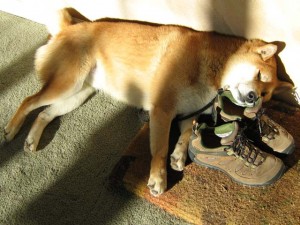 Shiba Inu and his shoe pillow.
 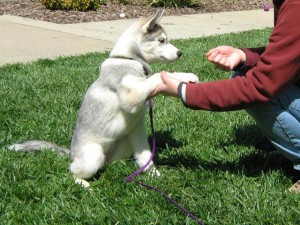 Dog handshake.
  Shiba Inu and duck toy.
 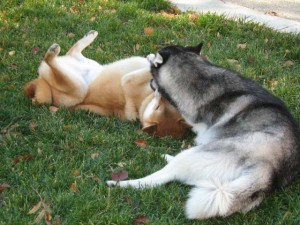 Shiba and Husky playing in the grass.
  Husky puppy on the green, green, grass of home.
 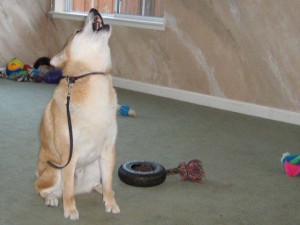 Shiba Inu singing for his supper.
  Husky puppy playing with a stick.
  Shiba Inu smile.
Shiba and Siberian rendered using Galleria.
Shiba Gallery Plugin Expanded Short-Codes
- category – List of comma separated category ids to include in the gallery.
[gallery category="109" type="nativex"]
[gallery tag="tag-a,tag-b,tag-c"]
[gallery tag_and="tag-a,tag-b,tag-c"]
[gallery recent="1"]
[gallery category="10" numberposts="15"]
[gallery category="10" numberposts="5" page="2"]
[gallery category="109" type="nativex" numberposts="15" post_type="post"]
[gallery category="109" responsive="aspect" type="tiny"]
[gallery category="109" tsize="(54,54)" type="tiny"]
[gallery category="10" frame="green"]
[gallery category="10" link="none"]
[gallery category="10" caption="description"]
[gallery category="109" cpos="bottom"]
[gallery category="109" clen="500"]
[gallery category="109" crop="1"]
[gallery category="109" active="1"]
[gallery category="109" autoplay="1"]
Note –
Only one of include, category, tag, recent, or id will be used. Include will be checked first, followed by category, followed by tag, and then recent. If none of these are set, id will be used.
Shiba Gallery Default Options
You can specify a default gallery type by going to Media >> Shiba Gallery.

From this screen you may also set the default thumbnail picture, default frame, and default captions. There is also a check box in the Default Frame section that specifies whether this default frame should also be applied to images in your blog.
The default gallery image will be used for posts and galleries that have no thumbnails assigned to them. If you do not have a default image, the plugin will just display an empty black image.
Show Shiba Galleries in Your Widget Areas
To show shiba galleries in your widget areas, simply enable gallery shortcodes for text widgets.
// Add to the init function of your functions.php file
add_filter('widget_text', 'do_shortcode');
Call Shiba Gallery Directly from PHP
If we want to call Shiba Gallery directly from PHP rather than use the WordPress gallery shortcode, we may do the following –
global $shiba_gallery;
echo $shiba_gallery->parse_gallery_shortcode("", array('id' => "10"));
Shiba Gallery Plugin Updates
Shiba Gallery 4.4
May 3rd, 2014
- Updated plugin paths.
- Added clen as a gallery shortcode attribute for controlling caption length on a gallery by gallery basis.
- Fixed a bunch of gallery CSS styles.
- Remove device check for slimbox javascript.
- Noobslide now using mootools 1.4.5.
- Updated for WordPress 3.9.
- Tested on Chrome, Safari, IE 11.
Shiba Gallery 4.3.3
Sept 23rd, 2013
- Added lightbox 2 gallery by Lokesh Dhakar.
- Fixed sizing bug that occurs when server responsive option is turned off. Thanks to Susan for reporting this.
- Assign better option default values based on gallery type.
Shiba Gallery 4.3
Sept 18th, 2013
- Shiba Gallery is now both client and server responsive. Server responsiveness allows the server to send the right sized images based on device width. Client responsiveness allows image size to change based on browser width.
[More on mobile responsive galleries and images] - Gallery images and links can now be tied to slimbox or lytebox.
- Added new gallery shortcode attributes – crop, active, and cpos.
- Create a slimbox gallery based on captioned images within a post.
- Updated Shiba Gallery settings page.
- Updated for WordPress 3.6.
- Cleaned up styles and fixed a bunch of bugs.
Shiba Gallery 4.0
Jan 12th, 2013
- Galleries and captioned images are now mobile responsive! The plugin uses device width to determine gallery and image sizes.
To turn on the mobile responsive feature, go to Media >> Shiba Gallery, scroll down to the bottom, and click on the “Enable responsive galleries and images” checkbox.
[More on mobile responsive galleries and images and what is used in this plugin]
- Updated for WordPress 3.5.
- Updated Tinyslideshow to version 2. The old version is still available by using type=”tiny1″
- Fixed noobslide fast clicks causing thumbnails and images to get out of sync.
- Collect galleria styles into the main css file.
- Options page is now encapsulated in a class wrapper and also uses the 3.5 new media manager.
- Removed Pslides. There are customization limitations, and the plugin already contains several thumbnail galleries including tiny1, tiny2, galleria, and noobslide.
- A whole bunch of other fixes.
Shiba Gallery 3.7.2
Aug 7th, 2012
- Updated for WordPress 3.4. Fixed default image pop-up menu.
- Updated Shiba Gallery options page with more standardized permissions check.
Shiba Gallery 3.7
May 7th, 2012
- Control thumbnail size. Specify thumbnail size using the tsize parameter. Works with Tiny Slideshow, Picture Slides, and Noobslide.
- Galleria. A new version of Galleria has been added back to the plugin.
- Navigation List. Useful for displaying a set of related posts or pages together with thumbnails, links, and article summaries.
- Default value filter. Hook into the shiba_gallery_defaults filter to alter gallery default values.
- IE8 and IE7 compability. Fixed several IE8 and IE7 compatibility issues. All galleries should now work on these browsers.
Shiba Gallery 3.5
February 15th, 2011
- Gallery links. You now have the option to set your gallery links to file, attachment, or none.
- Expanded WordPress captions. The standard WordPress caption shortcode has been expanded to deal with images and galleries.
- Lytebox. The Lytebox gallery has been added back to the plugin because it resizes large images according to the browser screen whereas Slimbox does not.
- Apostrophe in Titles. Galleries should function properly even if images have the apostrophe symbol in their titles.
Shiba Gallery 3.3
December 2nd, 2010
This is a big release with many new features.
- Gallery frames. You may now assign a variety of styled frames to your WordPress galleries and images.
- Gallery captions. You may now turn gallery captions on and off, as well as show image titles and descriptions.
- Gallery paging. The page attribute is now supported in the gallery shortcode. You may easily enable gallery paging by setting numberposts and page in your gallery shortcode.
- Gallery default options. There is now a gallery options page under Media >> Shiba Gallery. This screen allows you to set default frames, gallery types, captions, and thumbnail.
- New galleries. Some exciting new galleries have been added including Popeye 2.0, Picture Slides, and Slimbox.
- Gallery javascripts are now loaded at the end of the page and only as needed. If no galleries are used, then no gallery javascripts will be loaded. This will help improve page efficiency.
Shiba Gallery Plugin 3.1
April 6th, 2010
- Plugin has been modularized and all functions are encapsulated within wrapper classes.
- I have also integrated Shiba Gallery with the awesome YARPP plugin for showing related articles. By simply using the related tag in your gallery shortcode you may view YARPP results using any of the javascript galleries within the Shiba plugin.
Shiba Gallery Plugin 3.0
- The Shiba Gallery Plugin has been significantly enhanced in this release with the inclusion of NoobSlide; one of the most versatile, compelling, and well-constructed Javascript galleries I have come across.
- With NoobSlide, I was able to construct galleries that are similar in style to the previous Galleria, SlideViewer, and NativeX gallery types. Execution of galleries are now a lot faster, smoother, efficient, and clean.
- I have replaced –
- Galleria – with noobslide_galleria.
- Slide Viewer – with noobslide_slideviewer.
- Nativex – with noobslide_nativex.
- Smooth Gallery – with TinySlideshow.
- There is no longer any need for iframes, or background-image resizing operations. This makes the plugin faster, cleaner, and more secure.
Shiba Gallery 2.7.3
February 15th, 2010
- There is a Fatal error bug in the Shiba Gallery 2.7 release. This is due to a missing function in the plugin. I have fixed it in the latest patch 2.7.3. Please download this important patch.
- Many thanks to Jacob for detecting and reporting it so quickly.
Shiba Gallery Plugin 2.7
- You can now render post, page, and gallery objects using any of the gallery types. Some new gallery short-code options have been added to facilitate this new capability.
- We also expanded the WordPress native gallery and added it as a new gallery type (type=”nativex”).
Shiba Gallery Plugin 2.5
- Added the Slide Viewer javascript gallery by Gian Carlo Mingati.
- Added the ability to specify custom sizes for galleries.
Shiba Gallery Plugin 2.0
- Galleria now works on Google Chrome. It is Schweet!
Shiba Gallery Plugin 1.0
- Detailed description of the Shiba Gallery Plugin with examples.
Future Additions
If you are particularly impressed with a Javascript gallery, please let me know and I will look into including it within the Shiba Gallery Plugin.
Please let me know if you encounter any bugs or compatibility issues. This will help me to improve the plugin and update the compatibility list above.
Thanks to all the Javascript library authors for sharing their very awesome gallery scripts with us!
Any chance of a small update? It seems broken in the current wordpress. Actually it seem to work but some init errors pop up over the image. Or is it some other problem?