The WordPress Quick Edit menu allows us to quickly modify certain object attributes without having to go into the full object Edit Screen. The Quick Edit menu uses javascript to display the edit interface, thereby saving us time and additional calls to our WordPress server.

The first step towards expanding our WordPress Quick Edit Menu is to add a custom column to our target Edit Screen. In this example tutorial, we will expand the Quick Edit menu for Post objects. Therefore, we start by adding a custom column to our Posts screen.
1. Add a Custom Column
We add a custom column called Widget Set which shows some custom meta data associated with our Post objects.
// Add to our admin_init function
add_filter('manage_post_posts_columns', 'shiba_add_post_columns');

function shiba_add_post_columns($columns) {
	$columns['widget_set'] = 'Widget Set';
	return $columns;
}
The code above adds a new but empty column to our Posts screen.

To fill our new column with the relevant meta-data values, we use the manage_posts_custom_column action hook.
// Add to our admin_init function
add_action('manage_posts_custom_column', 'shiba_render_post_columns', 10, 2);

function shiba_render_post_columns($column_name, $id) {
	switch ($column_name) {
	case 'widget_set':
		// show widget set
		$widget_id = get_post_meta( $id, 'post_widget', TRUE);
		$widget_set = NULL;
		if ($widget_id)
			$widget_set = get_post($widget_id);
		if (is_object($widget_set)) echo $widget_set->post_title;
		else echo 'None';
		break;
	}
}
Line 2 – Add the manage_posts_custom_column action hook to our admin_init function.
Lines 5 to 6 – Check for our new custom column.
Lines 8 to 13 – Render our custom Post object meta-data values.
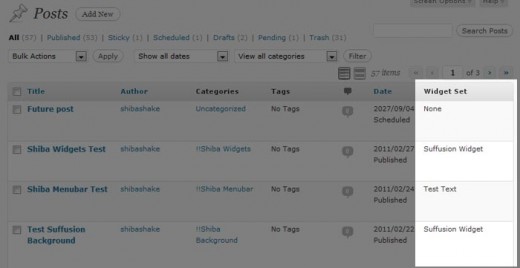
Now, our new column is filled with the relevant meta-data values.
2. Expand the WordPress Quick Edit Menu
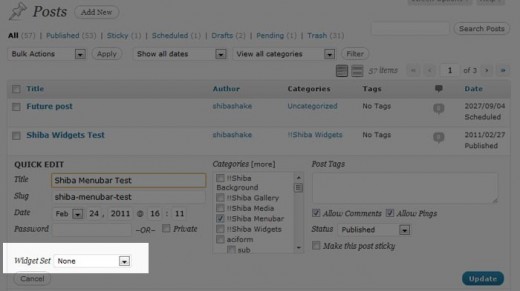
After adding our custom column, we are ready to expand our Post Quick Edit menu using the quick_edit_custom_box action hook.
Note – The quick_edit_custom_box action hook will not fire unless there are custom columns present. That is why we started by adding a custom column.
// Add to our admin_init function
add_action('quick_edit_custom_box',  'shiba_add_quick_edit', 10, 2);

function shiba_add_quick_edit($column_name, $post_type) {
	if ($column_name != 'widget_set') return;
	?>
    <fieldset class="inline-edit-col-left">
	<div class="inline-edit-col">
		<span class="title">Widget Set</span>
		<input type="hidden" name="shiba_widget_set_noncename" id="shiba_widget_set_noncename" value="" />
		<?php // Get all widget sets
			$widget_sets = get_posts( array( 'post_type' => 'widget_set',
							'numberposts' => -1,
							'post_status' => 'publish') );
		?>
		<select name='post_widget_set' id='post_widget_set'>
			<option class='widget-option' value='0'>None</option>
			<?php
			foreach ($widget_sets as $widget_set) {
				echo "<option class='widget-option' value='{$widget_set->ID}'>{$widget_set->post_title}</option>\n";
			}
		        ?>
		</select>
	</div>
    </fieldset>
	<?php
}
Line 5 – Only render our Quick Edit extension on the relevant screen.
Lines 7 to 25 – Render our custom drop-down menu for selecting widget sets.
3. Save Custom Quick Edit Data
We save our new quick edit menu data in the same way that we save new custom meta-box data – through the save_post action hook. The save_post function below was adapted from the example found on WordPress.org.
// Add to our admin_init function
add_action('save_post', 'shiba_save_quick_edit_data');

function shiba_save_quick_edit_data($post_id) {
	// verify if this is an auto save routine. If it is our form has not been submitted, so we dont want
	// to do anything
	if ( defined('DOING_AUTOSAVE') && DOING_AUTOSAVE )
		return $post_id;
	// Check permissions
	if ( 'page' == $_POST['post_type'] ) {
		if ( !current_user_can( 'edit_page', $post_id ) )
			return $post_id;
	} else {
		if ( !current_user_can( 'edit_post', $post_id ) )
		return $post_id;
	}
	// OK, we're authenticated: we need to find and save the data
	$post = get_post($post_id);
	if (isset($_POST['post_widget_set']) && ($post->post_type != 'revision')) {
		$widget_set_id = esc_attr($_POST['post_widget_set']);
		if ($widget_set_id)
			update_post_meta( $post_id, 'post_widget', $widget_set_id);
		else
			delete_post_meta( $post_id, 'post_widget');
	}
	return $widget_set_id;
}
4. Update the Quick Edit Menu with Javascript
Now comes the really fun part – notice that while our new custom input shows up in the Quick Edit menu, it is not properly updated to show which ‘widget_set‘ the current Post object is set to. I.e., our widget set meta-data is not getting through to our custom Quick Edit menu.
The set_inline_widget_set javascript function below updates our Quick Edit menu with the relevant meta-data.
// Add to our admin_init function
add_action('admin_footer', 'shiba_quick_edit_javascript');

function shiba_quick_edit_javascript() {
	global $current_screen;
	if (($current_screen->id != 'edit-post') || ($current_screen->post_type != 'post')) return;

	?>
	<script type="text/javascript">
	<!--
	function set_inline_widget_set(widgetSet, nonce) {
		// revert Quick Edit menu so that it refreshes properly
		inlineEditPost.revert();
		var widgetInput = document.getElementById('post_widget_set');
		var nonceInput = document.getElementById('shiba_widget_set_noncename');
		nonceInput.value = nonce;
		// check option manually
		for (i = 0; i < widgetInput.options.length; i++) {
			if (widgetInput.options[i].value == widgetSet) {
				widgetInput.options[i].setAttribute("selected", "selected");
			} else { widgetInput.options[i].removeAttribute("selected"); }
		}
	}
	//-->
	</script>
	<?php
}
Lines 5 to 6 – Only add the javascript quick edit function to the Posts screen.
Line 13 – Make sure that Quick Edit menu is closed. The revert function (defined in inline-edit-post.js) ensures that our Quick Edit custom inputs are properly updated when we switch Post objects.
Lines 15 to 16 – Set nonce value for our custom inputs. If we want, we can expand our save_post function to do a nonce check.
Lines 18 to 22 – Set the proper widget set option on our custom Quick Edit drop-down menu.
5. Link Javascript to the Quick Edit Link
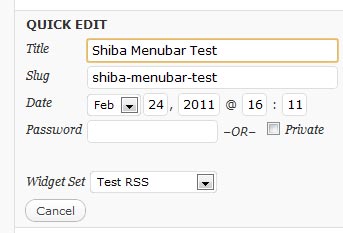
Finally, we want to link our set_inline_widget_set javascript function to the Quick Edit link so that it will update all our custom input values when a Quick Edit link is clicked.
We do this by hooking into the post_row_actions filter. Post object link actions are originally defined in the WP_Posts_List_Table class.
// Add to our admin_init function
add_filter('post_row_actions', 'shiba_expand_quick_edit_link', 10, 2);
function shiba_expand_quick_edit_link($actions, $post) {
global $current_screen;
if (($current_screen->id != 'edit-post') || ($current_screen->post_type != 'post')) return $actions;
$nonce = wp_create_nonce( 'shiba_widget_set'.$post->ID);
$widget_id = get_post_meta( $post->ID, 'post_widget', TRUE);
$actions['inline hide-if-no-js'] = '<a href="#" class="editinline" title="';
$actions['inline hide-if-no-js'] .= esc_attr( __( 'Edit this item inline' ) ) . '" ';
$actions['inline hide-if-no-js'] .= " onclick=\"set_inline_widget_set('{$widget_id}', '{$nonce}')\">";
$actions['inline hide-if-no-js'] .= __( 'Quick Edit' );
$actions['inline hide-if-no-js'] .= '</a>';
return $actions;
}
Lines 5 to 6 – Only expand Quick Edit links for the Posts screen.
Lines 8 to 9 – Get nonce and other custom input values associated with the current post.
Line 12 – Add the onclick event to our Quick Edit link and associate it to our set_inline_widget_set javascript function.
Related Quick Edit Menu Source Files
- Javascript Quick Edit file for post objects.
- inline_edit – Renders the HTML Quick Edit menu form.
- get_inline_data – Generates data that is later used by the javascript inline editor for posts and pages.
- Quick Edit link action.
Hi Shiba,
When opening a product (WooCommerce), you can choose for QUICK EDIT.
My client likes to have 2 extra fields *existing fields (found at EDIT, by the tab LINKED PRODUCTS).
• Upsells
• Cross-sells
Could you arrange this with a plugin or coding?
Regards, Ronald
Thanks for this tutorial. Does someone knows if this still work with wordpress 5.03 and 5.1.
Great job on this tutorial! It worked perfectly with me. I’ve got make it work with ACF smoothly! 🙂 But I’m having problem on add more than one field to quick edit menu. The first field I’ve added is a text field that update the text field from ACF added to the CPT. It worked beautifully, showing the current value on the field and updating when changed. But, I have other field that is a selectbox. Its options are the ones set on the custom field settings. I’ve duplicated the code I’ve modified for the textbox and modified again to load select options on selectbox. When I add this second field, neither the textbox nor the selectbox works. The textbox doesn’t loads the current value and the selectbox doesn’t loads the list of options and doesn’t select the current selected option. Do you have any idea on how fix it? Thank you! 🙂
Hello, is this still working for you in WP 4.7.2?
For me, it doesn’t work correctly. Post meta is added to the quick edit and also saved, but if I then click again on the quick edit link, there is no value.
If it works on your blogs it must be my fault 😛 But maybe it is an incompatibility issue.
Okay it works, I have done something wrong 😛
But when saving metadata and clicking at the quick edit link the old value is shown in the quick edit field. Only after refreshing the page you can see the updated value.
Is there a way to update the values immediately after clicking “Update” (like when I change the status of a post for example)?
This is exactly what is happening to me. It is updating the value in the database and in the column, but I have to refresh the page for the quick edit field to get updated. Any fix for this?
Thank you SO much for this very clear tutorial! Still works great (I’m using WP 4.4.2) and it was easy to follow along and modify to fit my particular custom field to be added.
I am very glad. Thank you Trisha.
fantastic, thanks!
Hi, i read this post..its nice..but ..i have a custom field “Download Link” i want to show this in quick edit mode how i can do this..