This plugin has been retired. It will no longer be supported or updated.
The Shiba Menubar plugin extends native WordPress custom menus so that you may add page trees, category trees, and archives. You may then render your menubar using a variety of drop-down menu scripts and skins.
August 3rd, 2012 – Release 1.2.2
- Updated for WordPress 3.4.
- Updated MooTools to 1.4.2.
- Added styles for Twenty Eleven.
Key Features of the Shiba Menubar Plugin
- Lets you add whole category, page, and archive trees to your native WordPress custom menus.
- Displays drop-down menus using a variety of menubar scripts including MenuMatic, Tinydropdown, and Sexydropdown.
- Easily apply different design skins to your drop-down menu through the Appearance >> Shiba Menus screen.
- Currently, the plugin only displays horizontal menus.
Drop-Down Menu Types
- Menumatic by greengeckodesign. [Menumatic Demo]
- Tinydropdown by Michael Leigeber.
- Sexydropdown by Soh Tanaka.
The advantage of both Tinydropdown and Sexydropdown is that their associated javascripts are tiny. Menumatic uses MooTools so it has a larger javascript footprint, but it also has some great drop-down menu effects, and it follows some of the best practices in drop-down menu design.
Create and Assign a Menubar
The menubar interface is just the standard Menus interface that comes with WordPress native (since 3.0).
- To create a menubar, go into Appearance >> Menus.
- Add in a menu name and hit the Create Menu button. This will create the menu object and now you may add elements to it.
- To add category, page, or archive trees simply go to the Custom Links menu and enter categories, pages, or achive as the URL. Also enter a Label of your choice.
- Once you are done, click on the Add to Menu button. This will add the archive tree to your menubar.
- Add other menubar elements. Once you are done remember to click on the Save Menu button to save your menubar.
- Now you may assign the menubar to your blog. There are two ways to achieve this:
- Theme Locations – Some themes provide special theme menubar locations. Often these areas are highly styled. If Theme Locations are supported, it will show up on the Theme Locations interface on the Appearance >> Menus screen. Just assign your new menubar using the Theme Locations interface and click on Save.
- Custom Menu Widget – WordPress native also comes with a Custom Menu Widget. You may also assign your menubar by dropping this widget in the proper widget area within your theme.


Theme Menubar Style
Most themes already have highly styled menubar areas. As a result, the plugin menubar may not display properly due to style collisions between theme and plugin.
Here is a simple trick to remove all theme CSS stylings so that the Shiba Menubar skins are properly applied –
<script type="text/javascript" >
jQuery('#access').attr("id","new-access");
</script>
In the code above, CSS stylings for the TwentyTen menubar are removed by reassigning the menubar div (#access) to something else (#new-access).
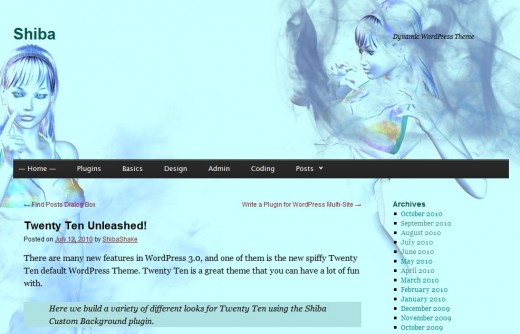
Here is an example of the TwentyTen theme using the Menumatic script and Black menubar skin.
The Shiba Menubar Plugin has inbuilt style conditions for the following themes (i.e., the plugin will work out of the box for the themes below) –
- Twenty Ten
- Thematic
- Suffusion
- Atahualpa
- Shiba Theme
Other themes may require some tweaking.
Future Work
- Enable the addition of partial trees.
- Add vertical menus.
- Set menubar entries to be fixed or variable width.
- Set menubar skin on a widget by widget level.
- Allow certain categories, pages, or archives to be excluded.
Shiba Menubar Plugin Updates
Shiba Menubar 1.2
February 26th, 2011
Shiba Menubar 1.1
October 29th, 2010
- Added two new drop-down menu scripts – Tinydropdown and Sexydropdown.
- Added menubar skinning capabilities. You can now apply different skins to your menubar.
- Easily change menubar scripts and skins through the Appearance >> Shiba Menus screen.
Can I expect any reply for my query? Why this plugin not working now..?
I am not sure I understand what you mean.
Did you use the plugin previously and now it is not working under 3.4? Are you using the same theme? Was there a theme update recently? What version of the plugin are you using? What exactly is not working? What did you enter in the Custom Menu? Is it not showing any drop down menu? Is there an example page?
Hey Im using your plugin version 1.2.2 and wordpress version 3.4.1 (latest)
I did as what U said above, BUT when I added m parent category and saved, its child categories are not appearing in my menu bar..
Im using woothemes canvas theme v4.7.3
I wanna give U my login website dashboard login details, can U check it? If YES, how do I send U an email?
Waiitng for ur quikc response!
and thnx for trying to help me out..
Hmmm, did you use the special link – http://categories in a Custom Link object?
Another possibility is that there could be a theme issue. Some themes have their own drop down menus and do their own styling. In these cases, the theme styling may be taking precedence over the plugin styling.
When using new updates, I usually try things out on a test site first. I would first try everything on the Twenty Ten theme. If it works on that theme, then I change to my main theme and see how it goes. In this way, if there are issues, I will know that it is theme related.
If I can look at an example page, I can probably tell if styling is the issue.
hi,
YES, now i added that above special link and tested.. (alos tried with twentyten theme as welll)… BUT still not appearing…
here is my website: clothemporium [DOT] com
and also pls seee this: http://i1101.photobucket.com/albums/g438/your-guru/shiba.png
Hope to get my prob resolve soon!
Thanks!
There is no forward slash at the end, just
http://categories
hi,
Hey , I removed that “/” now, BUT iam unable to see sub-categories under ‘Bags & Accessories’ category…
still whats the problem..?
The http://categories link shows all categories. All the other stuff is wordpress native, and follows regular native functionality.
The full extensions provided by the plugin are described in the article above. For the rest please refer to the WordPress Codex.
So, your plugin doesnt autmatically produce sub-categories when parent category added in a custom menu..?
No. Currently, it only allows *whole* category, archive, or page trees to be added. Displaying partial trees would be an interesting add-on though, so I will add it into the future updates list.
Hey,
why Iam unable to see child categories under my parent category using Custom Menu..? I can able to just see only my parent categories which I have added under ‘Custom Menu’.
Pls advice me..
Hi. I have installed your menubar plugin and thank you – I love that it allows a category drop down tree! Just what I was looking for.
I would like to leave the background of the menubar just as pink (to match my branding) so I have selected “none” there. Is there some way I can tweak the Text colour? It is currently displaying in BRIGHT BLUE which is somewhat awkward to read and I would love to see just plain old black here 🙂 I tried adjusting in the plugin editor but ended up deactivating the plugin.. I have reverted back and reactivated but not sure how to proceed.
Thanks in advance for the help!!
Currently the menubar links simply default to the link color of the theme. You can use CSS to change the link color. For example –
.shiba-menubar a { color: #000; }
Hi
will you tell me how to remove menu bar in my blog.it was in built menu bar in the theme.and iam removed the custom menu bar in blog but it always displaying.
please feel fre to give currect suggestion for me and your blog information is awsome. i like it very much.
That would depend on what theme you are using and how they implement menubars.
If the theme is using the standard menus within WordPress (under Appearance >> Menus), then simply go in there, create an empty menubar and assign that to the theme.
Otherwise, you can also use CSS to suppress the menubar from being shown (by using display:none or visibility:hidden. However, it will be more efficient to comment out the menubar code from the relevant theme PHP file.
Just to follow up…
I realized I do not need the WP menubar plugin.
If I “view widget set” from “edit widget set” everything looks perfect. When I go back to published pages/posts, menubar does not appear but by sidebar widget settings do.
Thanks.
Following up on my followup.
It seems (in my case) I am failing the Menubar Widget test:
if ($shiba_theme->num_widgets[‘Menubar’])
If I comment that test out of header.php, the menubar displays correctly. Thanks for listening! 😉
Glad it all worked out! 😀
Hi!
Absolutely the most creative stuff yet I have seen with WordPress! Kudos.
I am having a problem with Menu Bars. I installed the theme Shiba Theme, Shiba Menubar Plugin, Shiba Widgets.
WordPress 3.1.
I figured I needed the Menubar plugin also? I install that and it keeps saying “To complete your installation, please create the folder wp-content/plugins/menubar-templates and upload at least one Menubar template”
I must be missing something, because I can’t can’t any menubar to show up.
Probably something simple I am missing?
Thanks.