After we create a custom post type, we get a new menu item on our dashboard with the default post icon. We also get that same default icon when we go into the Edit and Add New screens of our new custom post type.
Here, we consider how to set our custom post type icons to our own image, or to another existing WordPress icon.
1. Register Post Type

The easiest way to define our own menu icon is to specify it within our register_post_type function call, while we are creating our new custom post type.
$args = array(
		'labels' => $labels,
		'public' => true,
		'publicly_queryable' => true,
		'show_ui' => true,
		'query_var' => true,
		'rewrite' => true,
		'capability_type' => 'post',
		'hierarchical' => false,
		'menu_position' => null,
		'menu_icon' => SHIBA_PLUGIN_URL .'/images/shiba-icon1b.jpg', // 16px16
		'supports' => array('title','thumbnail','excerpt')
	  );
	  register_post_type('gallery',$args);
In line-11 we specify a new menu icon for our custom post type. The menu icon should be sized at 16×16 pixels.
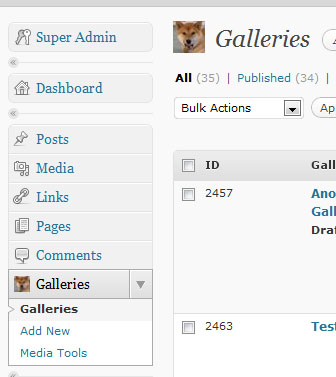
As is shown below, the icon shows up on our new menu item, but it does not appear in the individual Edit and Add New screens.

In addition, we have no control over our icon hover effect. You will notice that when you hover over existing WordPress menu items they switch from a less distinct gray image, to a darker and more vibrant icon.
2. Custom Screen Icons on Edit and Add New Screens
Another more flexible way to alter our new custom post type icons is to override their default image through CSS.
add_action('admin_head', 'plugin_header');
function plugin_header() {
        global $post_type;
	?>
	<style>
	<?php if (($_GET['post_type'] == 'gallery') || ($post_type == 'gallery')) : ?>
	#icon-edit { background:transparent url('<?php echo SHIBA_PLUGIN_URL .'/images/shiba-icon1.jpg';?>') no-repeat; }
	<?php endif; ?>
        </style>
        <?php
}
Line 6 – We only override the screen icon if the screen belongs to our custom post type.
Line 7 – We override the background image of the icon-edit div with our new screen icon.
Screen icons should be sized at 32×32 pxels.
3. Screen Icon Hover Effect
We can now use the same CSS strategy to achieve more control over our screen icon on the left menu-bar. Specifically, we can use it to define a different image when a user hovers over our custom post type menu.
add_action('admin_head', 'plugin_header');
function plugin_header() {
	global $post_type;
	?>
	<style>
	<?php if (($_GET['post_type'] == 'gallery') || ($post_type == 'gallery')) : ?>
	#icon-edit { background:transparent url('<?php echo SHIBA_PLUGIN_URL .'/images/shiba-icon1.jpg';?>') no-repeat; }
	<?php endif; ?>
	#adminmenu #menu-posts-gallery div.wp-menu-image{background:transparent url("<?php echo SHIBA_PLUGIN_URL .'/images/shiba-gray.jpg';?>") no-repeat center center;}
	#adminmenu #menu-posts-gallery:hover div.wp-menu-image,#adminmenu #menu-posts-gallery.wp-has-current-submenu div.wp-menu-image{background:transparent url("<?php echo SHIBA_PLUGIN_URL .'/images/shiba-hover.jpg';?>") no-repeat center center;}
</style>
<?php
}
To do this we have added line-9 and line-10 to our previous plugin_header function.
Note – Change #menu-posts-gallery to your own custom post type name. For example if your custom post type is shiba, then change #menu-posts-gallery to #menu-posts-shiba.
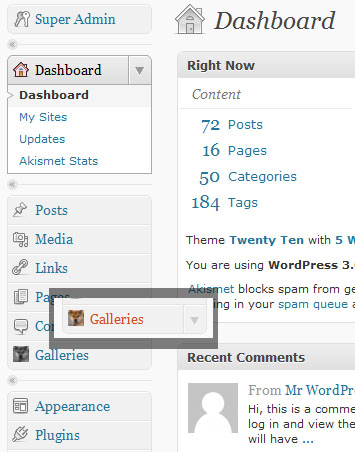
Now, we have our hover effect –
We are Done!
We can use the same CSS strategy to change our custom post type icons to other standard WordPress icons. For example, since our custom post type is a gallery object – it may be more appropriate to use the standard WordPress media icons.
add_action('admin_head', 'plugin_header');
function plugin_header() {
	global $post_type;
	?>
	<style>
	<?php if (($_GET['post_type'] == 'gallery') || ($post_type == 'gallery')) : ?>
	#icon-edit { background:transparent url('<?php echo get_bloginfo('url');?>/wp-admin/images/icons32.png') no-repeat -251px -5px; }
	<?php endif; ?>

	#adminmenu #menu-posts-gallery div.wp-menu-image{background:transparent url('<?php echo get_bloginfo('url');?>/wp-admin/images/menu.png') no-repeat scroll -121px -33px;}
	#adminmenu #menu-posts-gallery:hover div.wp-menu-image,#adminmenu #menu-posts-gallery.wp-has-current-submenu div.wp-menu-image{background:transparent url('<?php echo get_bloginfo('url');?>/wp-admin/images/menu.png') no-repeat scroll -121px -1px;}
        </style>
        <?php
}

hello, i am unable to mention the address of image that is to be uploaded. Can you suggest an alternate in place of “SHIBA_PLUGIN_URL” ???
It will be helpful…Thanks
You can reduce the overhead on changing your 32×32 Icon on custom post type pages by removing the PHP logic and handling this with CSS directly.
#icon-edit.icon32-posts-gallerires {
background: url(/path/to/your/backgound/image.png);
}
This way you can enqueue a single CSS file to handle all your admin CSS. You’ll stop using obtrusive CSS and reduce the amount of server-side logic required to handle what should really be a small lift.
I know this is an old post but I thought I’d mention it in case someone else rolls around here looking for this information.
Awesome!! and simple
There’s a much easier way:
Thanks for this tut. With collapsed admin menus the default in WP3.3, custom icons for CPTs become more important (to replace all those push-pins). For multiple CPTs, rather than list all the styles in functions.php, in might be better to call a stylesheet:
 function load_custom_wp_admin_style(){
 wp_register_style( 'custom_wp_admin_css', get_bloginfo( 'stylesheet_directory' ) . '/style-admin.css', false, '1.0.0' );
 wp_enqueue_style( 'custom_wp_admin_css' );
 }
 add_action( 'admin_enqueue_scripts', 'load_custom_wp_admin_style' );
this stylesheet can serve double-duty for those using TinyMCE’s “Styles” select-list:
add_editor_style( 'style-admin.css' );where are you defining “SHIBA_PLUGIN_URL” and can you do this with bloginfo template_url?
define( ‘SHIBA_PLUGIN_URL’, WP_PLUGIN_URL . ‘/my-plugin-directory’ );
http://codex.wordpress.org/Determining_Plugin_and_Content_Directories
Also, sorry to be a pain, but you’ve got some screwy PHP in your example!
 function plugin_header() {
 ?>
 global $post_type;
Hi Joss –
Thanks for pointing out the error. It is now fixed.
Thanks for being a pain 😉 and please let me know if you spot more errors.
Great article – for anybody interested in doing a big of Firebugging, it is possible to duplicate the WordPress style of menu-hover icon with pure css.
Investigate how WP handles it – if you’re adding a ‘podcast’ event type, you’ll get a menu with a css class of menu-icon-podcast. Just use CSS to target that, and its hover state, and you’re set.
Sorry for commenting twice, but I found an extra bonus. If you simply add something like that:
|| (get_post_type($_GET['post']) == 'gallery'to your “if” statement you get your custom post type icon in your “edit post” screen too, not only when creating new gallery but when editing one.
Again, thanks for pointing it!!!!!
Nice alternate way for getting the post_type. Thanks!
Thank you, very usefull. I really dislike how WordPress manages icons for new custom post types and this saved my day!