The add_menu_page and add_submenu_page functions are used to add menu and submenu items to our WordPress dashboard.
For example, in the screen-shot below, we have added a new Shiba Themes menu. It contains the submenus Shiba Themes, Add New, and Theme Options. Here we consider some common tasks that we may want to perform using add_menu_page and add_submenu_page including –
- Add a new custom post type submenu.
- Add new menus and modify its default submenu name.
- Delete submenus from existing menus.
1. Add a Custom Post Type SubMenu

Custom post types was introduced in WordPress 3.0 and it provides us with an easy way to create our own post-like objects.
After we create a custom post type, a new menu will be added to our dashboard allowing us to manage and edit our custom objects.
For example, in the screen-shot to the right we have created a new custom post type called theme, and a new menu (called Shiba Themes) has been added to manipulate these theme objects.
The menu panel starts off with two default submenu pages –
- The Shiba Themes submenu page shows us a list of our theme objects and their attributes. We can search for, delete, copy, and perform other actions on our themes here.
- The Add New submenu page allows us to create new theme objects and edit existing theme objects.
To add a new submenu page to our custom post type menu, we can use the add_submenu_page function.
// Add to admin_menu function
$page = add_submenu_page( 'edit.php?post_type=theme', __('Theme Page Options'), __('Theme Menu Options'), 'edit_themes', 'theme_options', theme_options);

function theme_options() {
        // Render our theme options page here ...
}
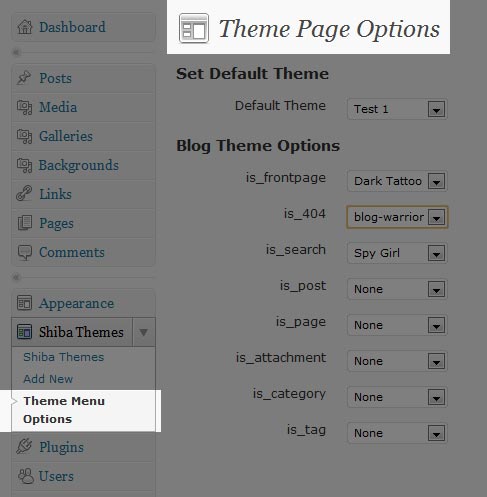
The add_submenu_page function accepts 6 arguments –
- Menu ID – Defines the unique id of the menu that we want to link our submenu to. To link our submenu to a custom post type page we must specify –
- Page title – Title of the page or screen that the submenu links to. If you are rendering your own page, then the page title value is stored in the global $title.
- Menu title – Title of the submenu.
- Capability – Defines what permissions a user must have in order to access this submenu. Here are a list of capabilities.
- Submenu ID – Unique id of the submenu.
- Submenu display function – Function containing HTML and PHP code on how to display the page or screen that the submenu is linked to. In the example above, our theme_options function contains HTML code to render the different drop-down menus appearing in our Theme Page Options page.
edit.php?post_type=my_post_type
Note – The menu id can be either a file name as with the example above or it can be a unique menu id (defined in add_menu page). If it is a file name, it can only be a file name from one of the native WordPress menus.
As such it MUST be a file in the WordPress wp-admin menu and CANNOT be one of your own files.
To specify our own submenu rendering function we must pass it through as the last argument of our add_submenu_page function call.
2. Add New Menus and SubMenus
In the example above, a dashboard menu was automatically added for us as part of our custom post type. If we want to manually add our own menu, then we must use the add_menu_page function.
// Add to admin_menu function
add_menu_page(__('My Menu Page'), __('My Menu'), 'edit_themes', 'my_new_menu', 'my_menu_render', '', 7);

function my_menu_render() {
	global $title;
	?>
        <h2><?php echo $title;?></h2>
        My New Menu Page!!
        <?php
}

The add_menu_page function accepts 7 arguments –
- Page title – Title of the page or screen that the menu links to. If you are rendering your own page, then the page title value is stored in the global $title.
- Menu title – Title of the menu.
- Capability – Defines what permissions a user must have in order to access this menu. Here are a list of capabilities.
- Menu ID – Unique id of the menu.
- Menu display function – Function containing HTML and PHP code on how to display the page or screen that the menu is linked to.
- Menu icon – (optional) URL of the icon to use for this menu. Here is a tutorial on how to flexibly customize your menu icons.
- Menu position – (optional) If left unspecified, new menu will appear at the bottom. Otherwise, standard WordPress menus are specified in positions of 5s. For example Dashboard = 0, Post = 5, Media = 10, and so on. Since we want our menu to appear after post, we set its position to 7. If we set it to 5 it will replace the Post menu.
Notice though, that when we add a new sub-menu to our menu area, the first sub-menu that appears is actually our menu page. Furthermore, the name of that first sub-menu is exactly the name of our menu (e.g. My Menu).
// Add to admin_menu
add_submenu_page('my_new_menu', __('My SubMenu Page'), __('My SubMenu'), 'edit_themes', 'my_new_submenu', 'my_submenu_render');

The first sub-menu entry automatically gets added by the WordPress system. If we want to customize the name of our first sub-menu, we must specify our own replacement sub-menu.
add_submenu_page('my_new_menu', __('Manage Menu Page'), __('Manage New Menu'), 'edit_themes', 'my_new_menu', 'my_menu_render');
Note – Argument 5 must contain our menu ID (my_new_menu) rather than a new sub-menu id. In addition, it must be the FIRST sub-menu added.
As we can see below, we have changed the menu name and page name of our first sub-menu.

Unfortunately, this technique does not work on custom post type menus. To change the first sub-menu name in our custom post type menu we must do the following –
// Add to end of admin_menu action function
global $submenu;
$submenu['edit.php?post_type=theme'][5][0] = __('Manage Themes');
$post_type_object = get_post_type_object('theme');
$post_type_object->labels->name = "Manage Shiba Themes";
Lines 1-2 – Change the first sub-menu name. For example, we have changed our Shiba Themes first sub-menu to show the name Manage Themes instead of Shiba Themes.
Lines 3-4 -Change the first sub-menu page name. For example, we have changed our Shiba Themes first sub-menu page to show the title Manage Shiba Themes instead of Shiba Themes.

3. Delete an Existing Sub-Menu
Finally, we may want to remove certain sub-menu elements. This may occur when we want to add a page but do not want it to be directly accessible from the main dashboard.
The function below allows us to remove a sub-menu based its unique menu-id and the unique submenu-id.
function remove_submenu($menu_name, $submenu_name) {
	global $submenu;
	$menu = $submenu[$menu_name];
	if (!is_array($menu)) return;
	foreach ($menu as $submenu_key => $submenu_object) {
		if (in_array($submenu_name, $submenu_object)) {// remove menu object
			unset($submenu[$menu_name][$submenu_key]);
			return;
		}
	}
}
For example we could do –
// Add to end of admin_menu function
remove_submenu('edit.php?post_type=theme', 'theme_options');
Great post. Helped me a lot. Thanks
Regarding menu position for top-level menus… they DO replace the existing menu but you can get around it using decimals:
http://gabrielharper.com/blog/2012/08/wordpress-admin-menu-positioning-conflicts/
Maybe not the prettiest solution but it has saved me a ton of headaches!
Thanks for the “customizing the name of the first sub-menu” tip!!! It’s really helpful when you use jquery-based tabs.
Hi SHIBA is there a way to add a meta box after add_menu_pag(); ??
other then coding a class to do it?
i used this code
add_action(“admin_menu”, “createMyMenus”);
function createMyMenus() {
add_menu_page(“My Menu”, “My plugin”, 0, “my-menu-slug”, “myMenuPageFunction”);
add_submenu_page( ‘edit.php?post_type=theme’, __(‘Theme Page Options’), __(‘Theme Menu Options’), ‘edit_themes’, ‘theme_options’, theme_options);
add_submenu_page(“my-menu-slug”, “My Submenu”, “Add Customer”, 0, “hello-world”, “mySubmenuPageFunction”);
add_submenu_page(“my-menu-slug”, “My Submenu”, “View Customer”, 0, “view_user_detail”, “veiw_user_detail.php”);
it shows sub menu but doesnt open the page of submneu of view user detail.php
http://codex.wordpress.org/Function_Reference/add_submenu_page
That last argument is a function.
I was wondering if you used the add_action(”) function to initialize these options on a theme.
Yeah, I use the admin_menu action hook.
add_action('admin_menu', 'my_admin_menus');There is more example code in the WordPress Codex
http://codex.wordpress.org/Administration_Menus
But please tell me what file ( .php ) in wordpress to put the code into ? >> function add_menu_page
It would depend on whether you are adding the menu pages from a plugin or from a theme.
If you just want to add it into your existing theme, then it would be the functions.php file.